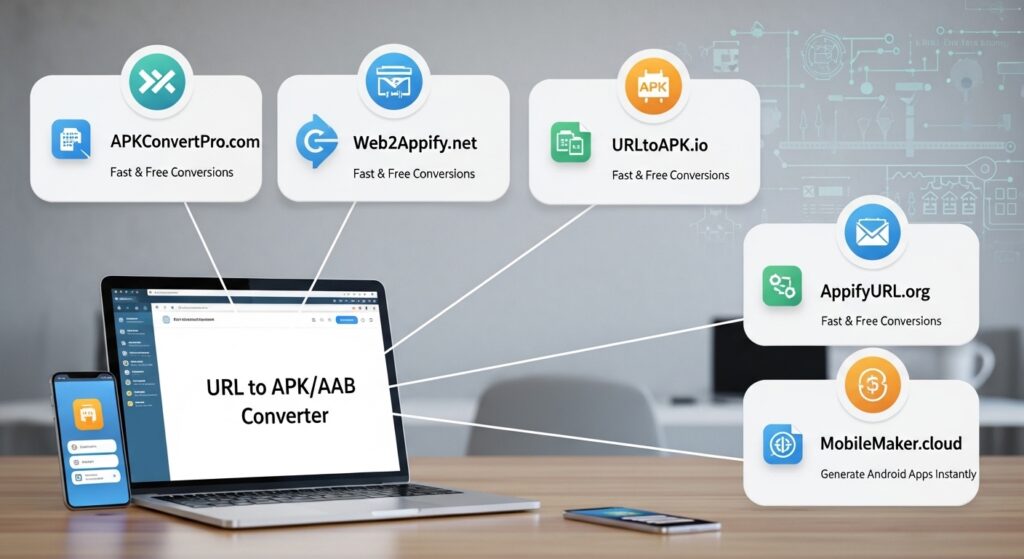
5 Websites to Convert Your Website URL to APK / AAB
⚠️ Important Note First: As of August 20th, 2025, the Amazon Appstore only works on Amazon’s own Fire devices (Fire tablets & Fire TV). For many apps, it may no longer be worth publishing there. WebtoApp If you want to reach the most users, consider Google Play Store instead. That said, here is the full guide:
✅ 5 Websites to Convert Your Website URL to APK / AAB
1. 🔗 websitetoapk.com — Web2Apk
Converts your website or HTML5 site to an Android APK and App Bundle (AAB). No ads included in output. Website 2 APK Supports both APK and AAB. Great for clean, professional builds.
2. 🔗 webintoapp.com — WebIntoApp
The free plan lets everyone convert a website URL into a standalone APK and AAB. You can set your own icon, customize ownership details, and publish to the Play Store or Amazon Appstore. Web To App
3. 🔗 appyzeen.com — Appyzeen
Enter your URL, app name, and package name, then customize features like splash screen, push notifications, AdMob, and 60+ more options. Generates both APK and AAB files in 1–2 minutes. Pay per build — no subscriptions. APPYZEEN
4. 🔗 appypie.com — Appy Pie
Enter your URL into Appy Pie’s APK App Builder, customize design and features, then generate your APK. Offers a free trial; advanced features start at $16/month. Appy Pie Also supports AAB and iOS.
5. 🔗 freewebtoapk.com — FreeWebToApk
Converts any website to an Android APK or AAB — supports WordPress, Wix, Shopify, and HTML5. Completely free with no signup required. FreeWebToApk
📋 Step-by-Step: Convert Website → Upload to Amazon Appstore
PART 1: Convert Website to APK/AAB
Step 1 — Choose a tool (e.g. Appyzeen or WebIntoApp)
Step 2 — Enter your details:
- Your website URL (e.g.
https://stijob.org.pk) - App name
- Package name (e.g.
com.stijob.app) - Upload your app icon (512×512 px PNG)
Step 3 — Customize features:
- Set splash screen, theme color
- Enable/disable push notifications, offline mode
Step 4 — Build the app:
- Click “Build” or “Generate”
- Wait 1–2 minutes
- Download both the APK (for testing) and AAB (for store upload)
Step 5 — Test on a real device:
Install the APK on your Android phone and check everything works properly.
PART 2: Publish to Amazon Appstore
Step 1 — Create Amazon Developer Account:
Go to developer.amazon.com and click “Create Your Free Developer’s Account.” GeeksforGeeks It is free to register.
Step 2 — Add a New App:
Log into the Amazon Developer Console. Navigate to Apps & Services → Add a New App. Select your app type (Android App) and provide the required app details. Appmarketo
Step 3 — Fill App Details:
- App title, category, description
- Company name and contact email
Step 4 — Add Images:
You need a minimum of 3 and maximum of 10 screenshots. Video (optional) should be 720–1080px wide in MP4/MOV format. GeeksforGeeks
Step 5 — Set Availability & Pricing:
Choose countries and set free or paid pricing.
Step 6 — Upload your APK or AAB file:
Drag your AAB or APK file into the upload box. The Appstore uses bundletool to convert AAB files into optimized APKs for each device automatically. Amazon Developer
Step 7 — Set Content Rating:
Answer the content questionnaire honestly to get your rating.
Step 8 — Review & Submit:
When the Upload, Target, and Appstore Details screens all show green check marks, the Submit App button becomes enabled. Amazon Developer Click Submit.
Step 9 — Wait for Review:
The review process typically takes 3–7 business days. If Amazon finds any issues, you’ll receive feedback on how to fix them. Once approved, your app goes live in the Amazon Appstore. Appmarketo
💡 Pro Tip for stijob.org.pk: Use Appyzeen — it gives both APK + AAB in one build, supports custom keystore signing, and has a one-time payment model which is ideal for your use case.
